Course Reserves Instructor Guide
The following guide provides UH faculty with instructions on using the Course Reserves system to create and manage reading lists, add materials to the lists, request digitized book chapters, and request library purchases as needed.
Instructors using the Course Reserves program should read all Course Reserve policies and be familiar with copyright and fair use for Reserves.
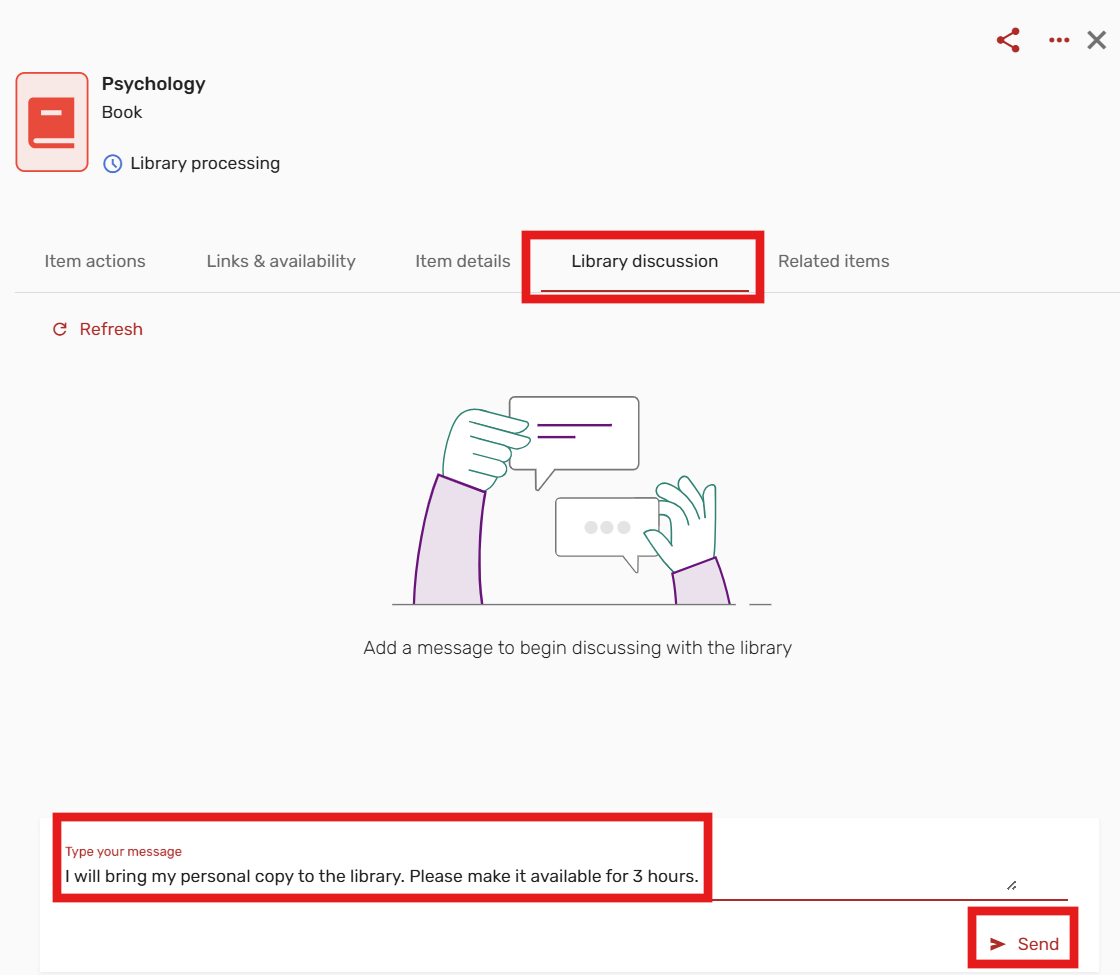
Please note: When adding a physical resource to a reading list, please use the Library Discussion tab in the item record to let Course Reserves staff know the item’s loan period (please indicate either 3 hours or 2 days).
Accessing Course Reserves
Faculty can manage course reserves through Canvas:
- Log in to Canvas (for login issues, contact Canvas for help)
- Select the course (Published or Unpublished) you wish to add Course Reserves to.
- From the left menu bar, select “Course Reserves.”
- The Course Reserves interface (a system called Leganto by the vendor Ex Libris) will be displayed. You can now create or manage your reading lists.
Creating and Editing Reading Lists
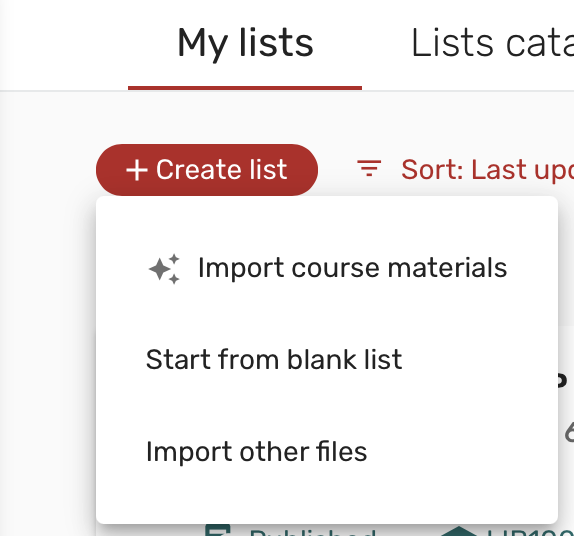
1. After logging into Canvas and selecting the course you’d like to create a reading list for, a list will be generated showing any reading lists previously created for the course. You can select one of those lists to edit or use the + Create List option to create a new one. Using the Import course materials option will allow you to use the AI Syllabus Assistant (explained further below) tool, while selecting Start from blank list will create a blank list.
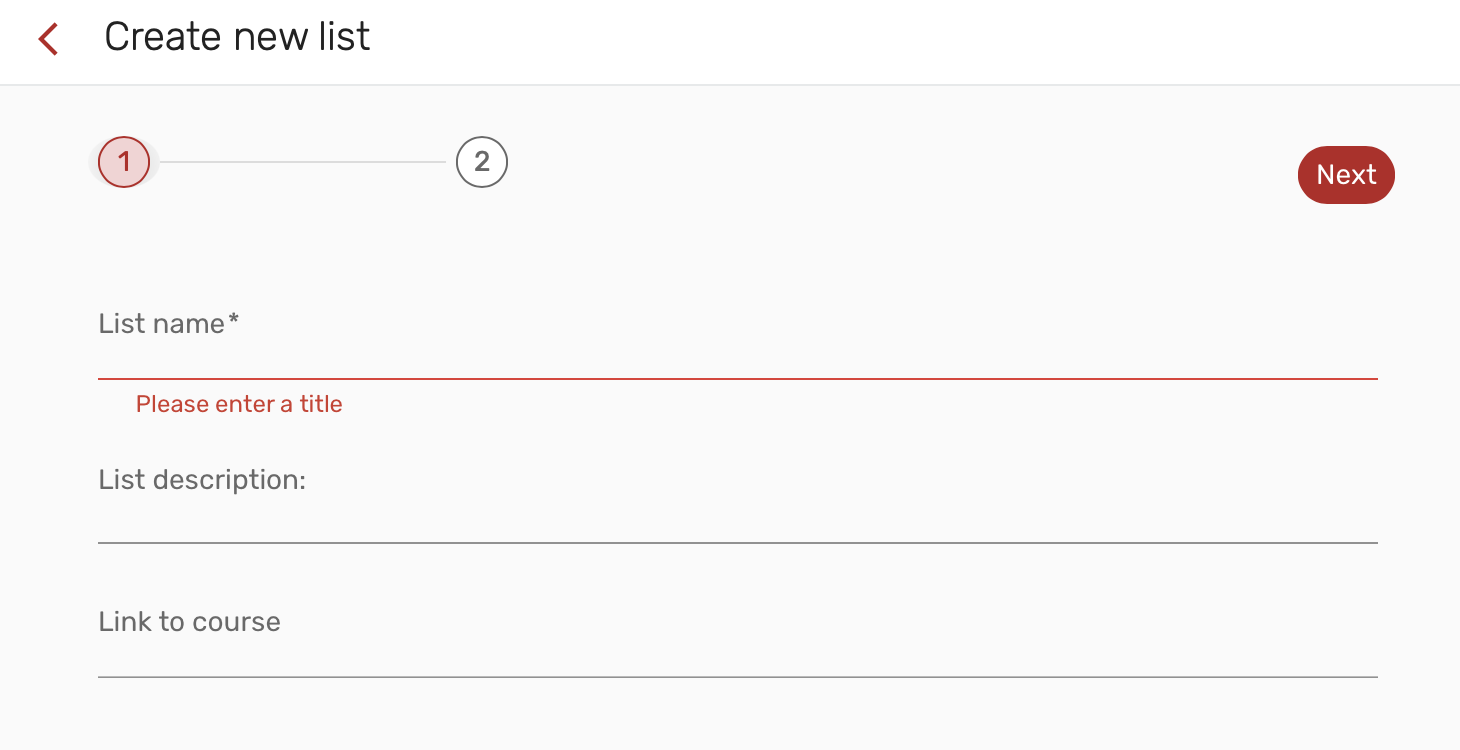
2. Enter a list title and description. If the reading list was not automatically linked to your course, you can use the third field to connect it. Start typing in the name of your course or the course ID for it to appear as a drop-down option.
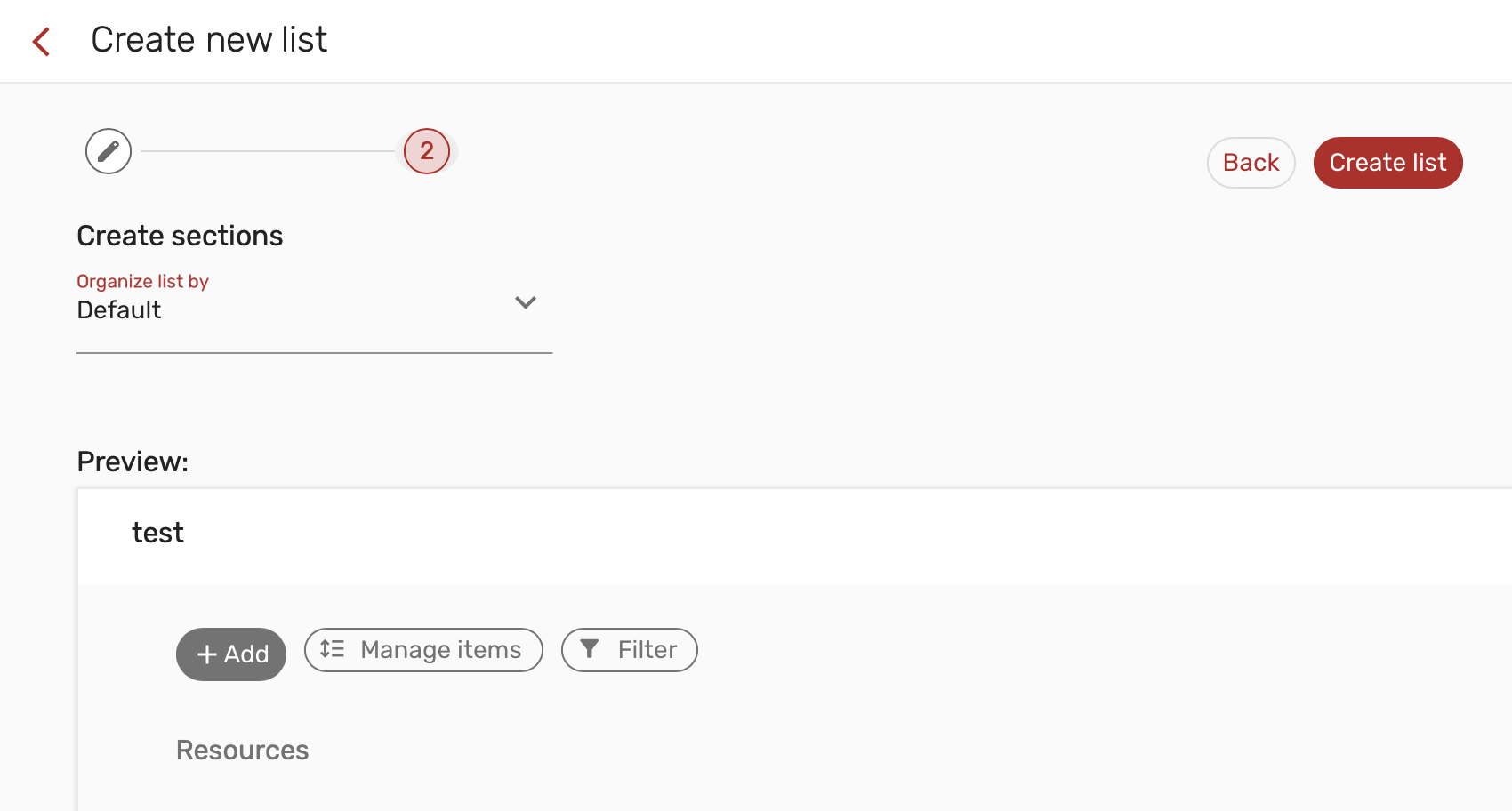
Once you’ve created your list, it will create a default section called Resources. You can create additional sections now or create/edit them later. Course materials can be organized on your list using these sections. Many instructors create sections such as Week 1, Week 2 or
Adding Materials to a Reading List
Physical and electronic resources can be added to course reading lists from library search results, through the Course Reserves interface itself, or even by using the Cite It! plug-in while browsing the web. Instructors can also use the Course Reserves interface to manually upload additional links and digitized materials.
Adding Materials through Library Search
Materials can be added to course reading lists while searching the Libraries online.
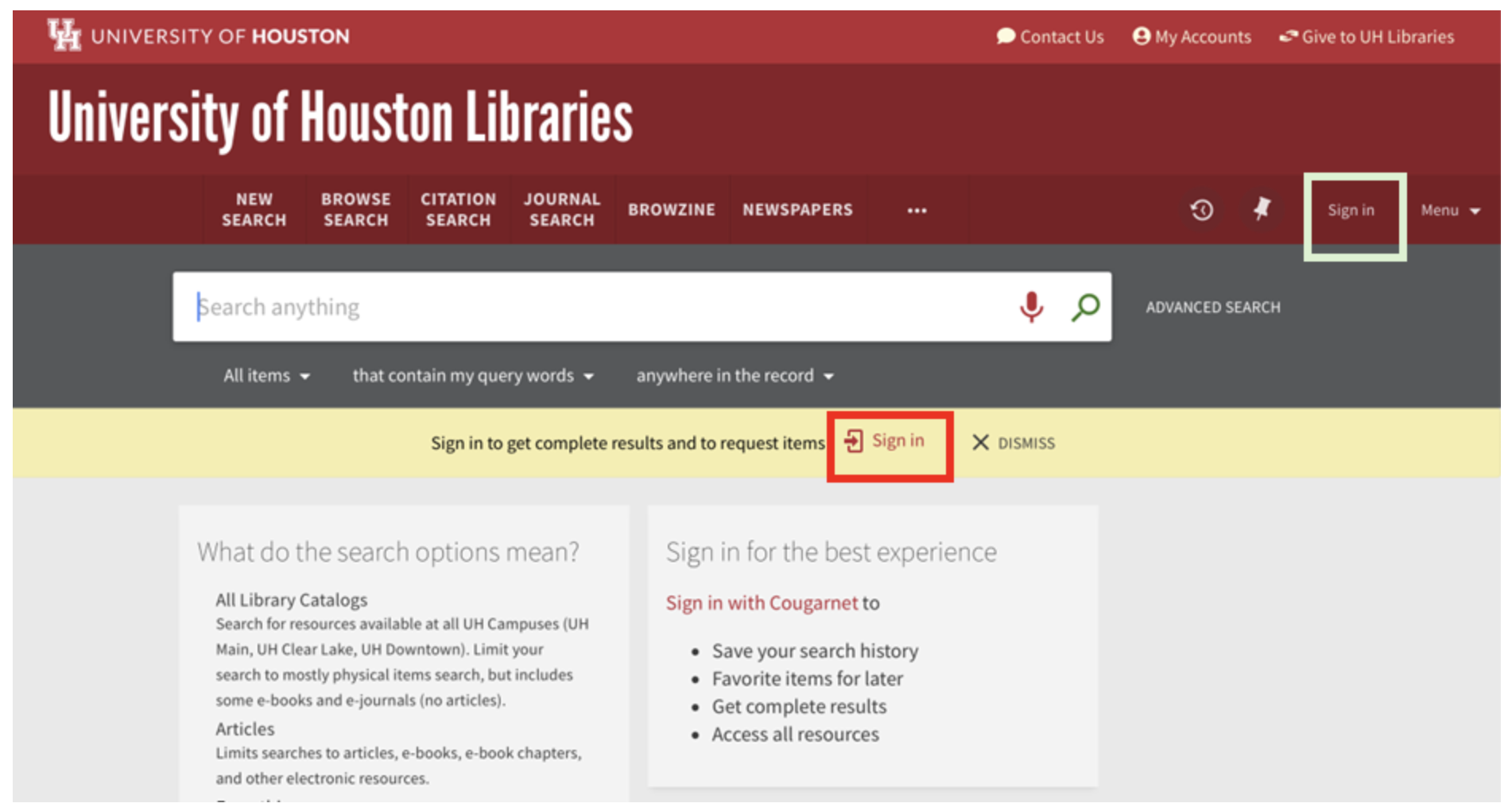
1. Sign in using your University of Houston account:
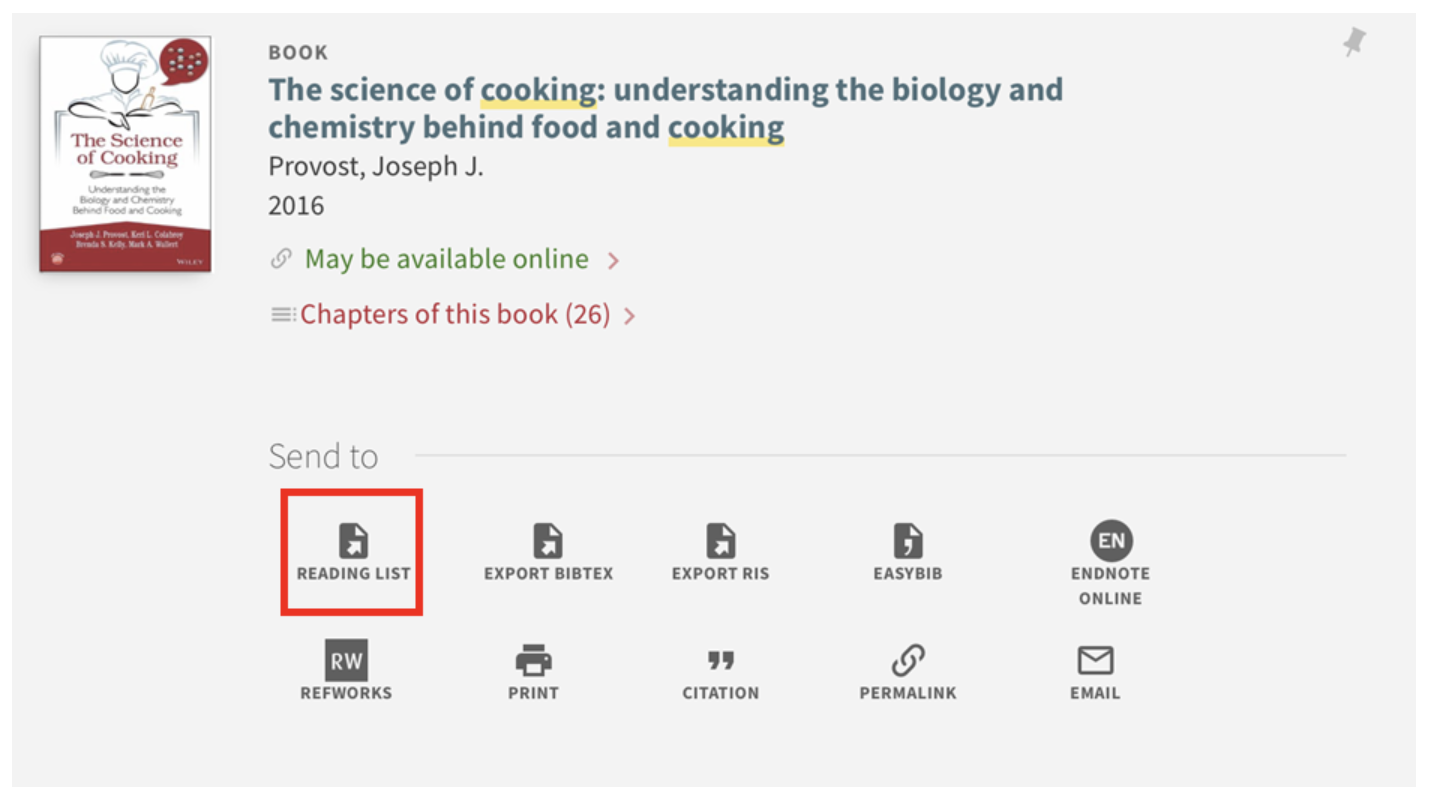
2. When you find material you’d like to add to a course reading list, use the Reading List option from the Send To menu.
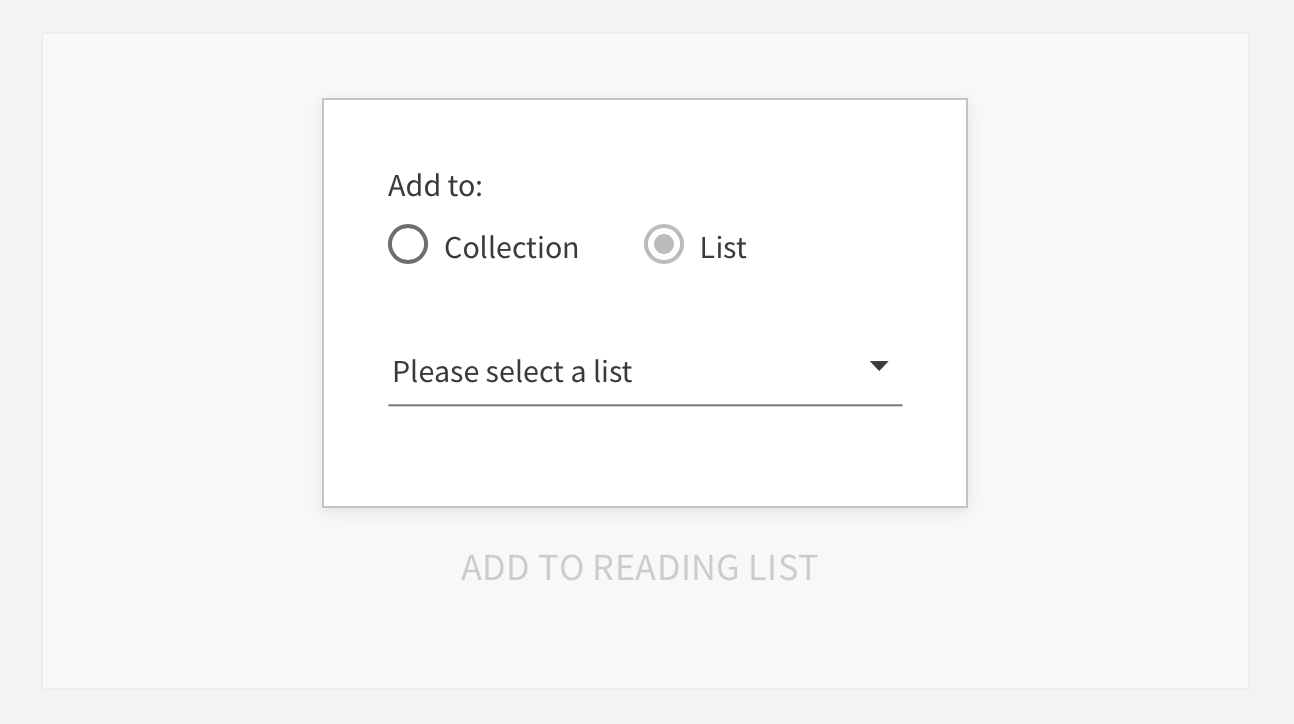
3. Select List and use the drop-down to select the reading list you’d like to add the material to. Then click Add to Reading List.
Adding Materials through the Course Reserves interface
Alternatively, you can also add materials to your course reading list while you’re in Canvas.
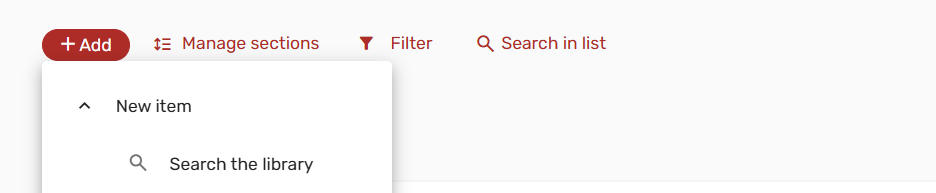
1. In Canvas, navigate to your course and select Course Reserves. On the Reading List page, click +Add, then choose Search the library:
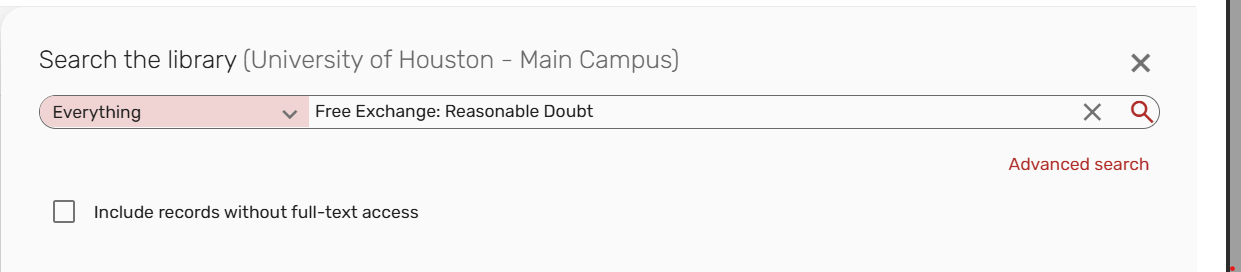
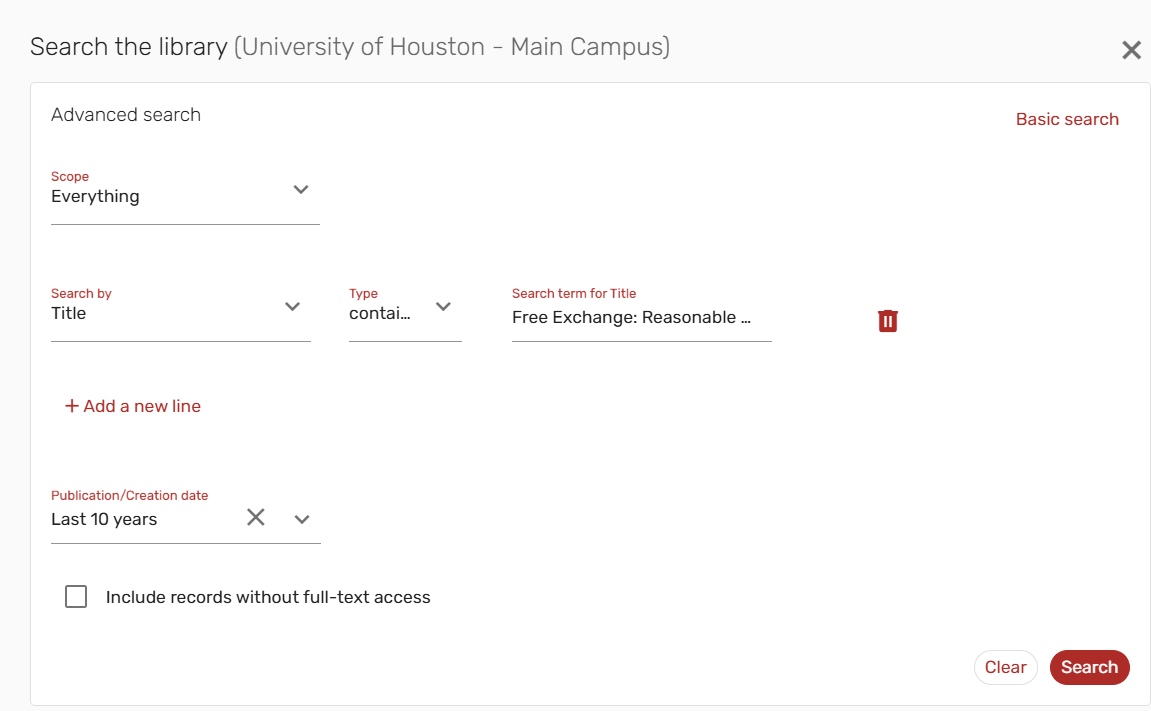
2. Select Everything and enter the material’s title. This basic search interface is effective at finding items, but for even greater flexibility and a more precise matching algorithm, you can also use advanced search by clicking the Advanced Search option:
Advanced Search will give you options like the following:
3. From the search results, select the item you would like to add to the reading list:
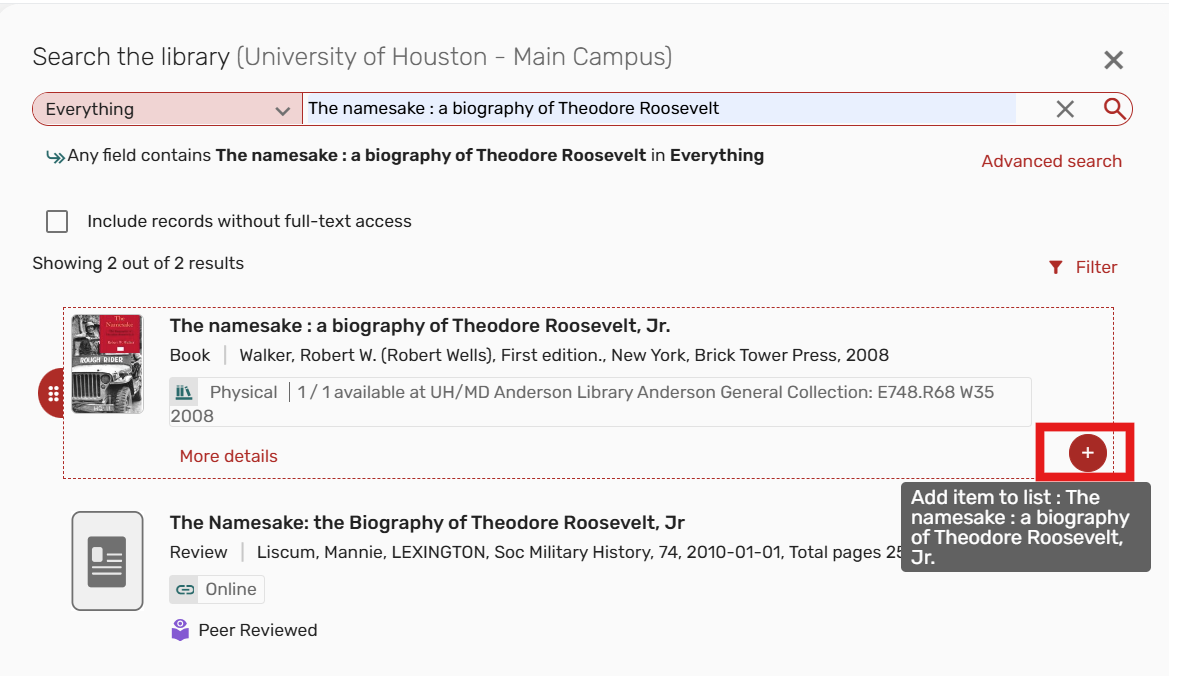
After adding a physical resource, please use the Library Discussion tab in the item record to let Course Reserves staff know the item’s loan period (please indicate either 3 hours or 2 days).
Adding Materials through the Cite It! plug-in
The Cite It! browser plug-in enables faculty to add items to reading lists while browsing the web. On a web-based resource focused on a book, article, or video, the Cite It! plug-in can extract the relevant information and add it to your list on demand.
1. Follow the installation instructions on the vendor’s website to install Cite It! on your favorite web browser.
2. After installing, configure the plug-in by clicking on Extension Options or Configuration Options (depending on which browser you’re using) and for the CiteIt! Configurations: Leganto URL option, enter and save the following:
https://uh.leganto.exlibrisgroup.com/leganto/
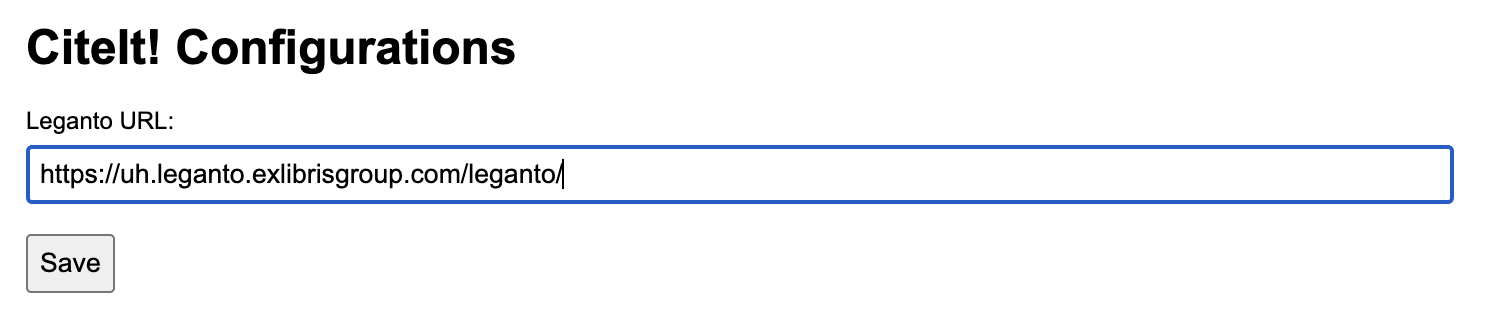
3. Enabling other options, such as Allow access to site URLs, can help ensure proper functionality.
4. As you browse the web, click the Cite It! icon to add items to your course reading list.
New Feature: AI Syllabus Assistant
A new feature makes it easier to build course reading lists using an AI tool. Instructors can upload a syllabus, and the AI will automatically identify and extract relevant resources, adding them directly to the course list.
1. Begin by going back to the reading list index (click Lists on the left side of the page) and by selecting + Create List and Import Course Materials.
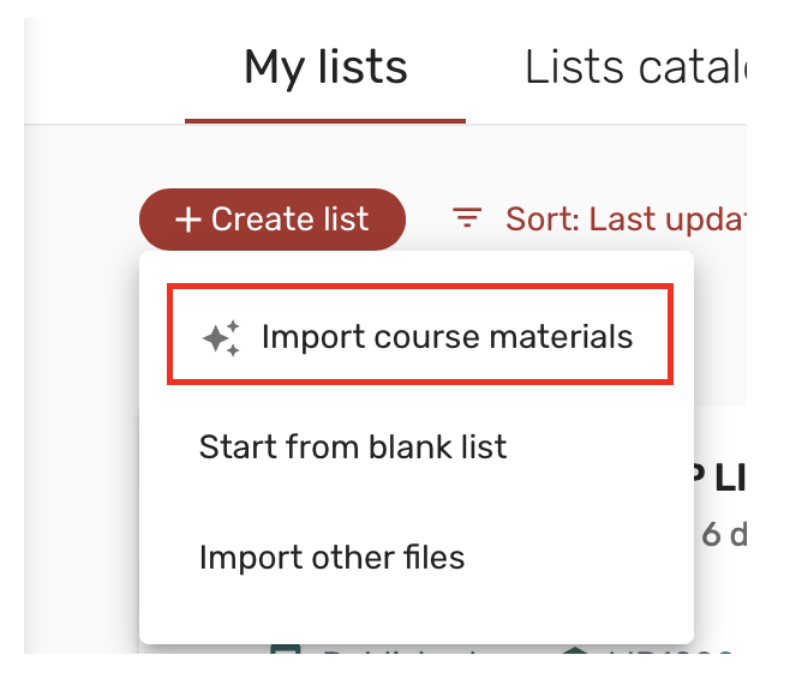
2. The next screen will let you upload your syllabus in a variety of formats.
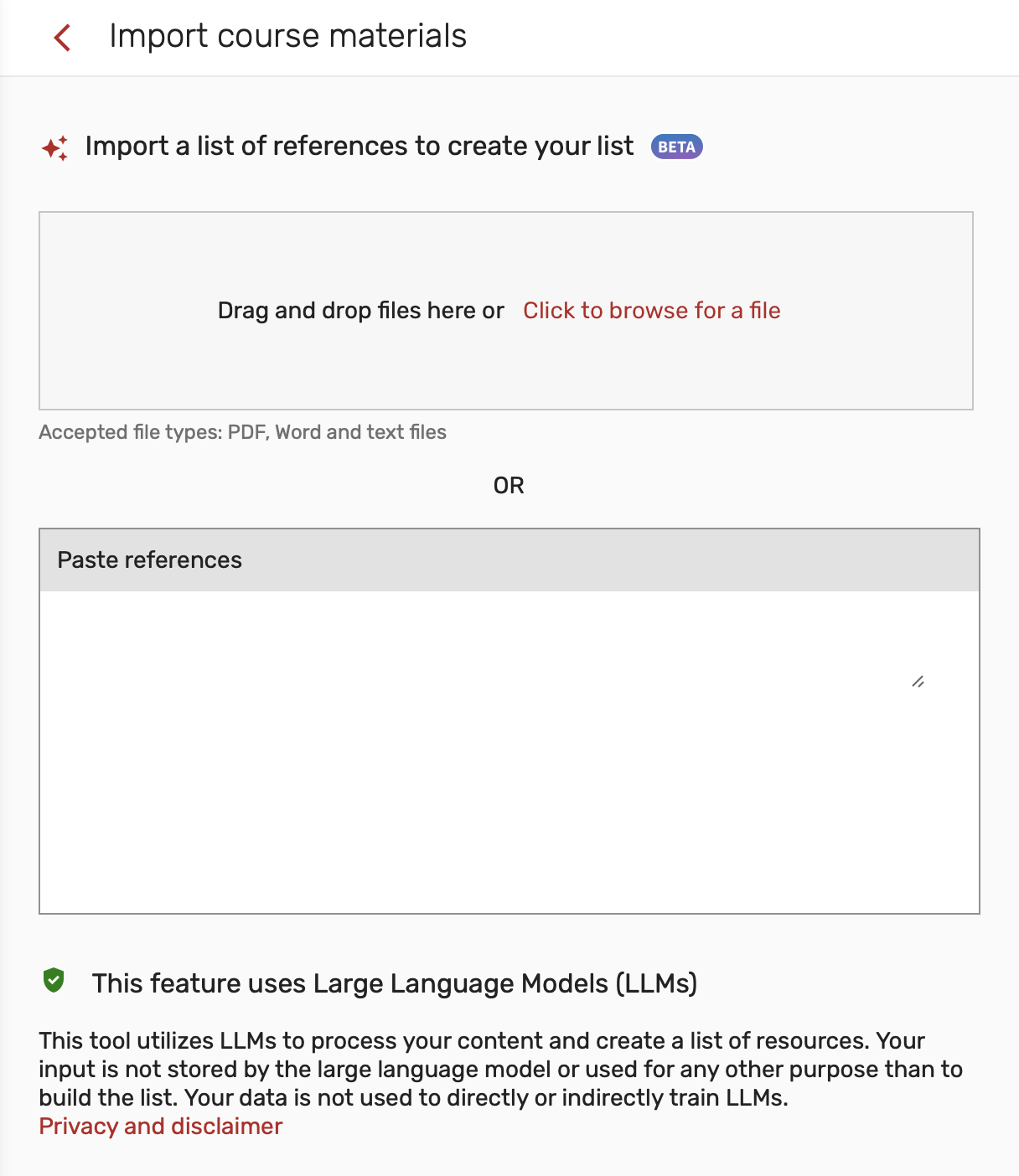
The AI syllabus assistant is a new feature and may not be able to extract citations from everything on the list. Please check for completeness and accuracy. Please see the vendor’s FAQ and the vendor’s AI statement for more information.
Instructor-Owned Items
Add a Personal Copy
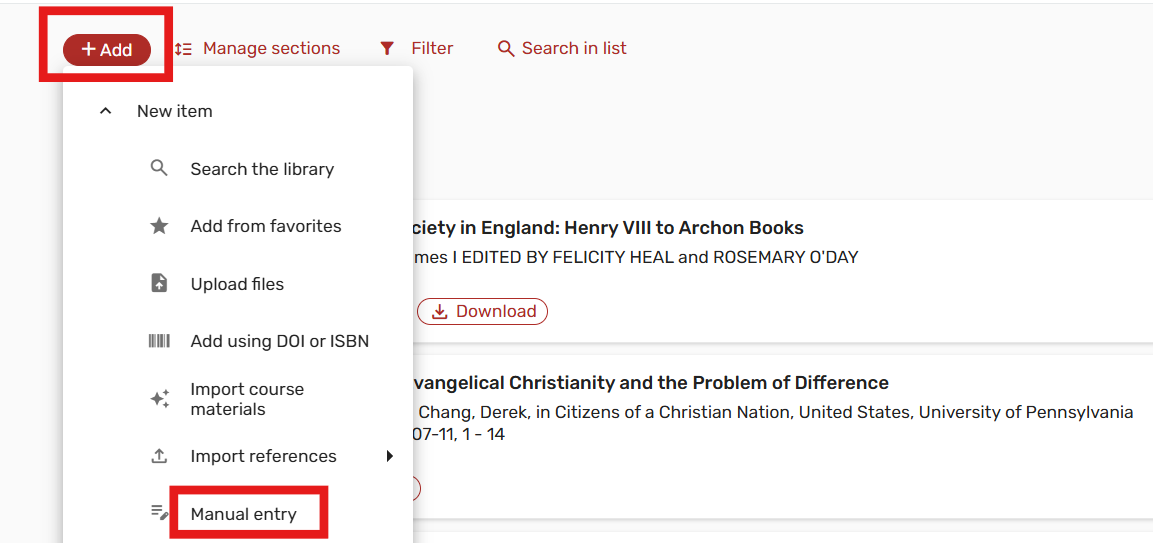
1. In Canvas, go to your course and select Course Reserves. On the Reading List page, click +Add, then choose Manual Entry:
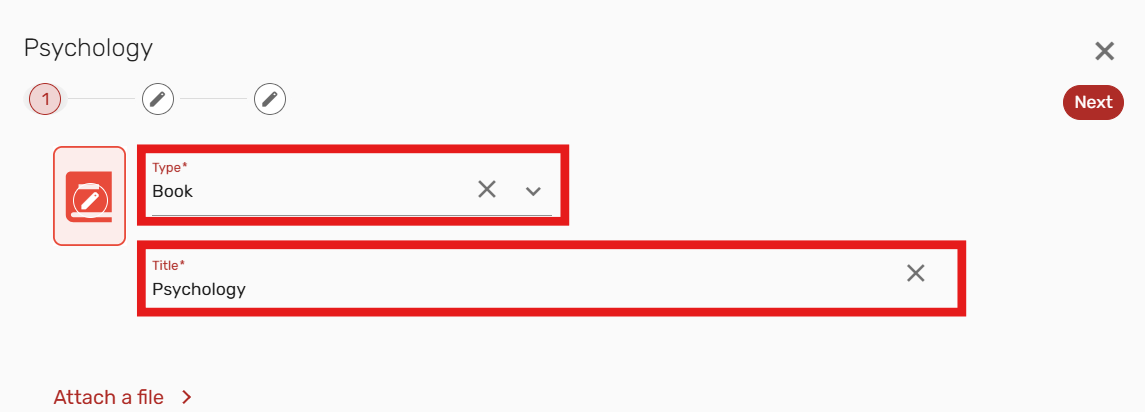
2. Under Type (drop-down), select the item format, enter the item title, and click Next :
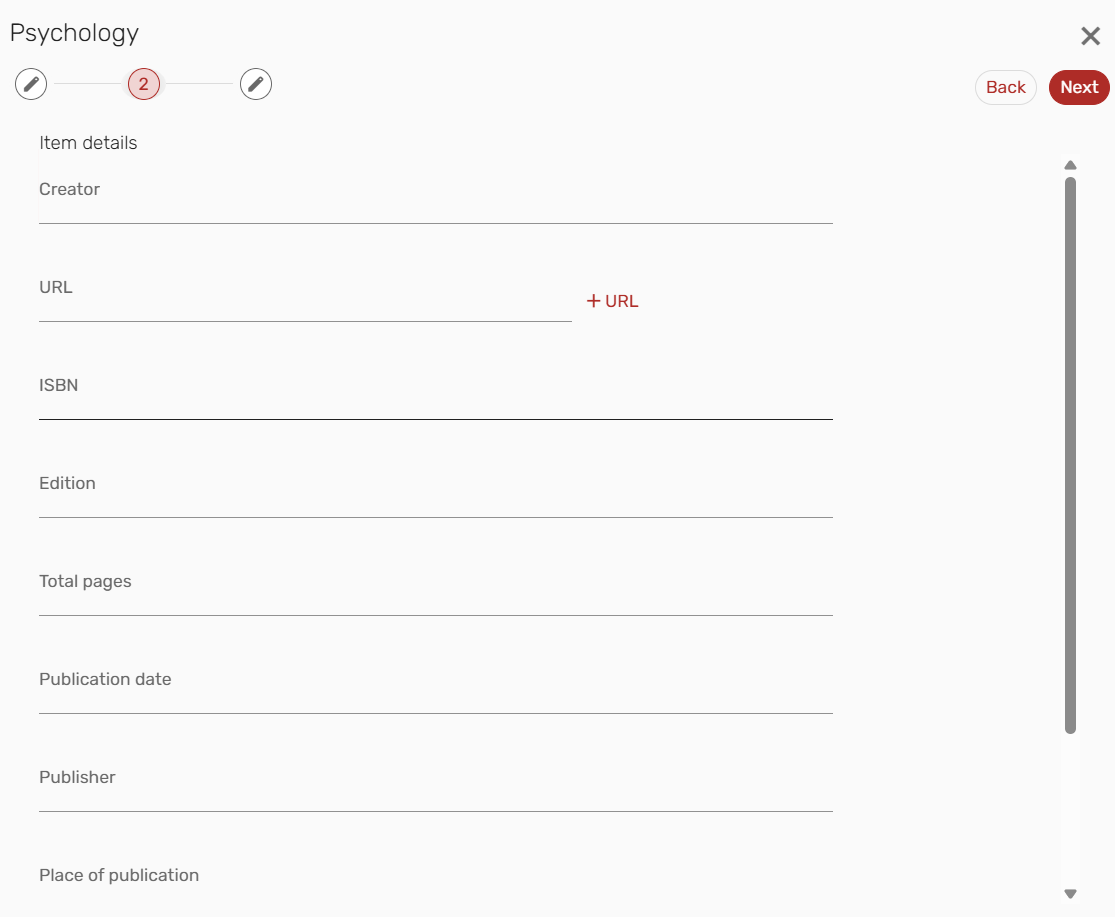
3. Fill out all required information (such as author/creator, ISBN, edition, year, and publisher) in the citation form as shown below, then click Next:
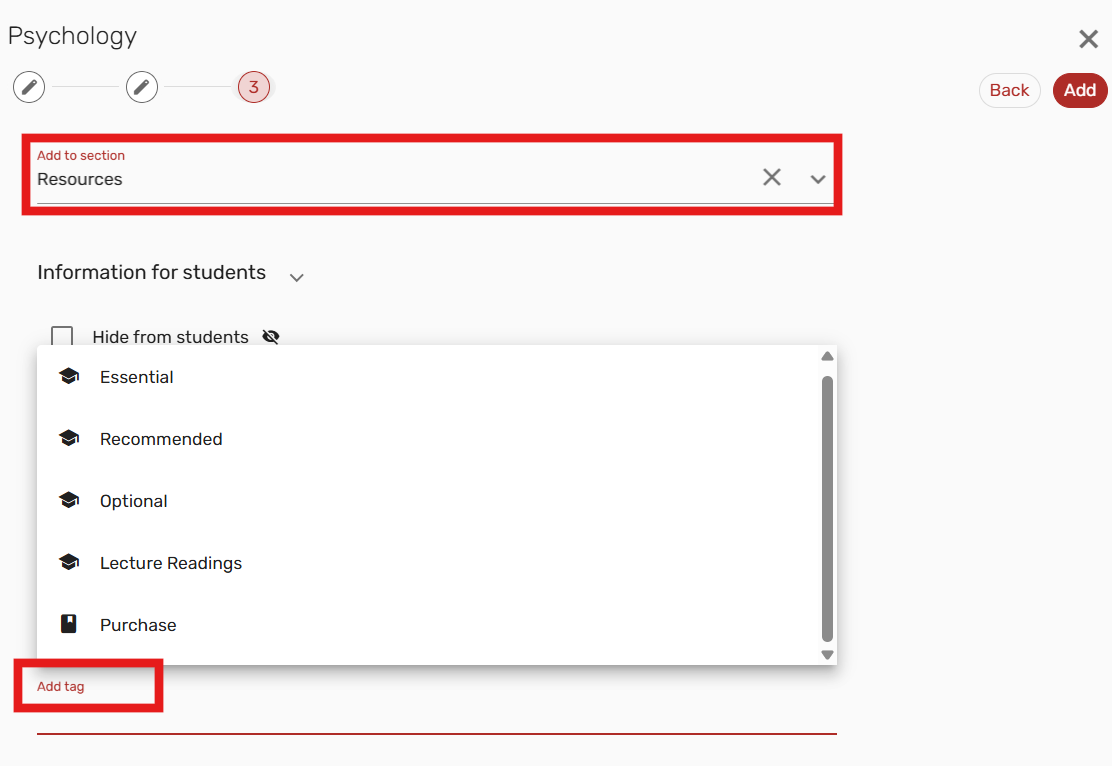
4. On the next page, under Add to Section, select a section from the dropdown and the appropriate tag type, then click Add:
5. After the citation is added, open the item record by clicking Full Details:

6. Click the Library discussion tab, type a message saying you will bring a personal copy to the library and how long students can borrow it, then click Send:
File Uploads
Instructors are able to manually upload files such as PDFs for use in course reserves in accordance with library course reserves policy and copyright. When doing so, a few additional guidelines should be followed:
- Do not upload PDFs or downloaded copies of electronic resources available in library databases or electronic journals. Journal articles, e-books, and other electronic resources should be linked directly to the library resource.
- Instructors are responsible for ensuring that uploaded materials comply with applicable copyright law and accessibility standards. Our copyright page contains more information on copyright and fair use for uploaded materials.
Library Approval Process
Course reading lists are visible only to course instructors and library staff until they’ve been published and processed by UH Libraries staff. To submit your reading lists for library processing, click the My list is ready button that appears after you’ve started editing your list.

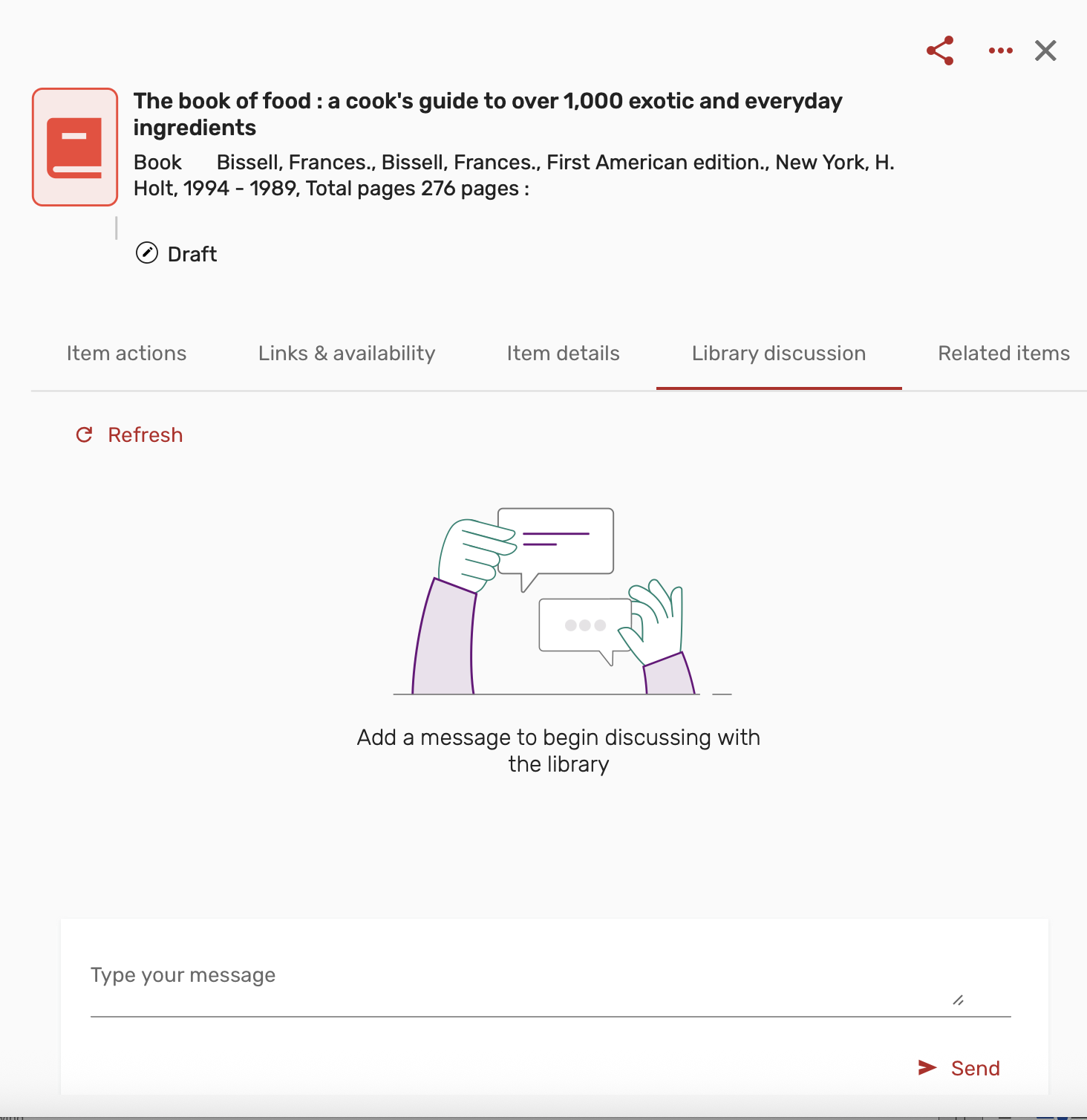
There’s also an option to view your list as a student will see it. If you have any questions about a particular item, instructors can click on an items Full Details button and use the Library Discussion tab to submit a message.

Submit a Digitization Request (for library owned print items)
1. In Canvas, navigate to your course and select Course Reserves. On the Reading List page, click +Add, then choose Search the library
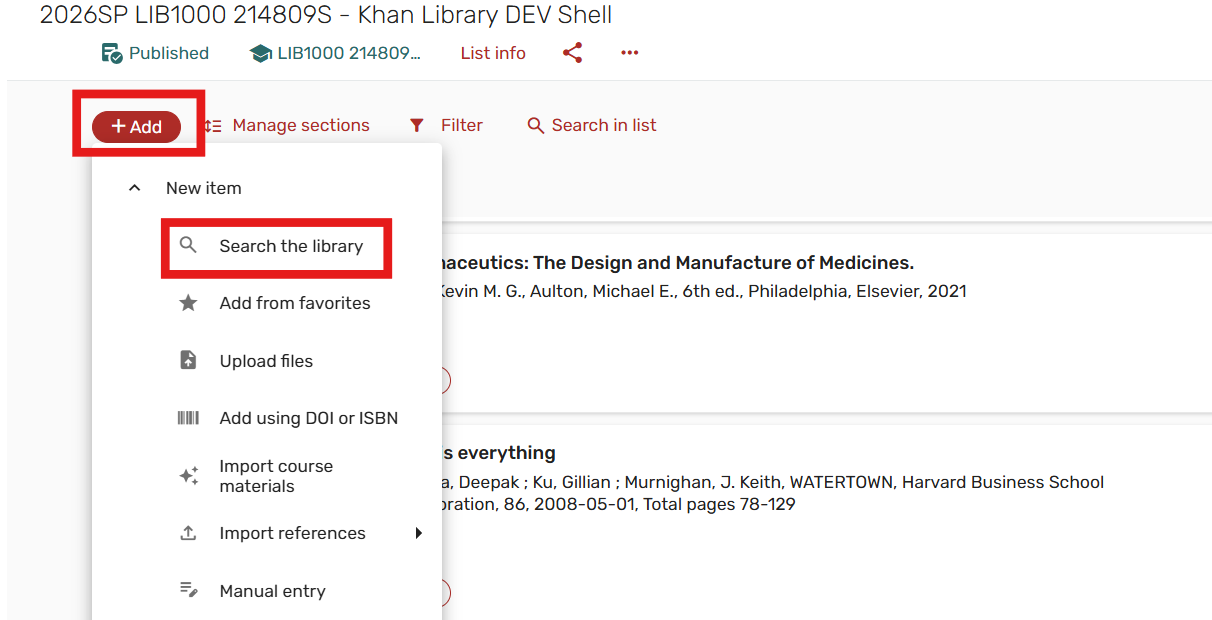
2. Look up the item in search bar. Select the print item you would like to add to the reading list:
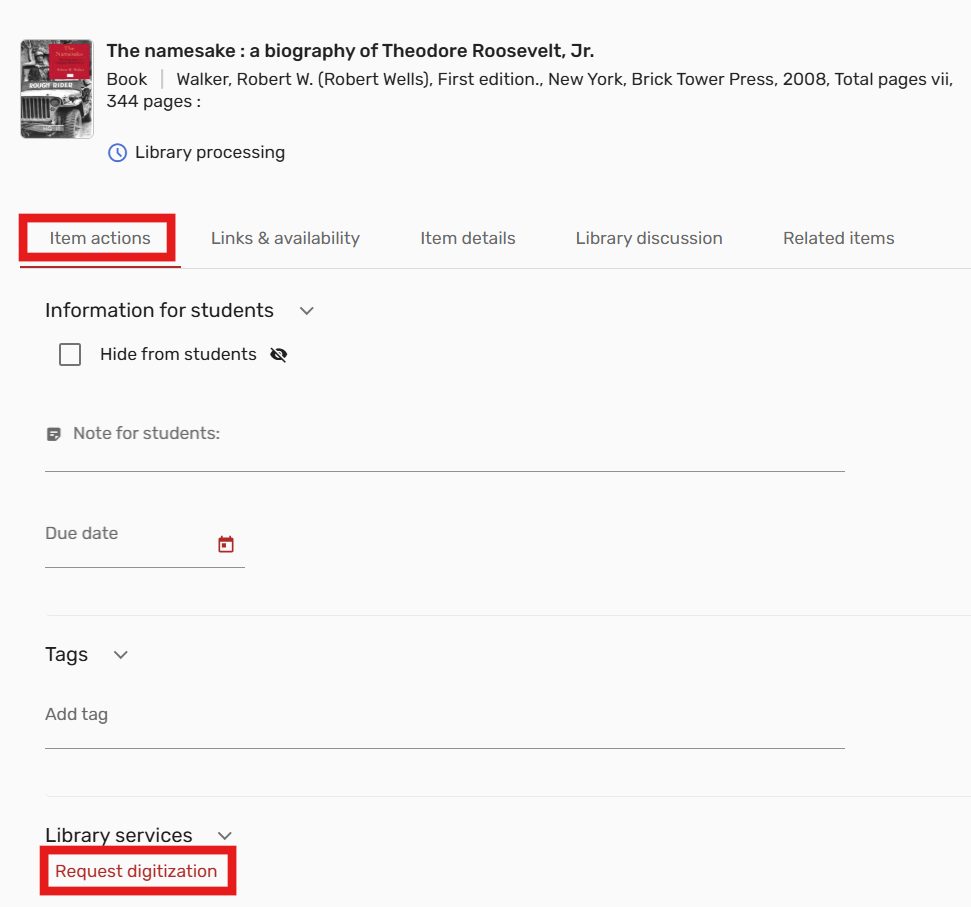
3. Open the item record by clicking Full Details, then click the Item Actions tab. Under Library Services, select Request Digitization

4. On the scan request form, please provide the chapter number, start and end pages:
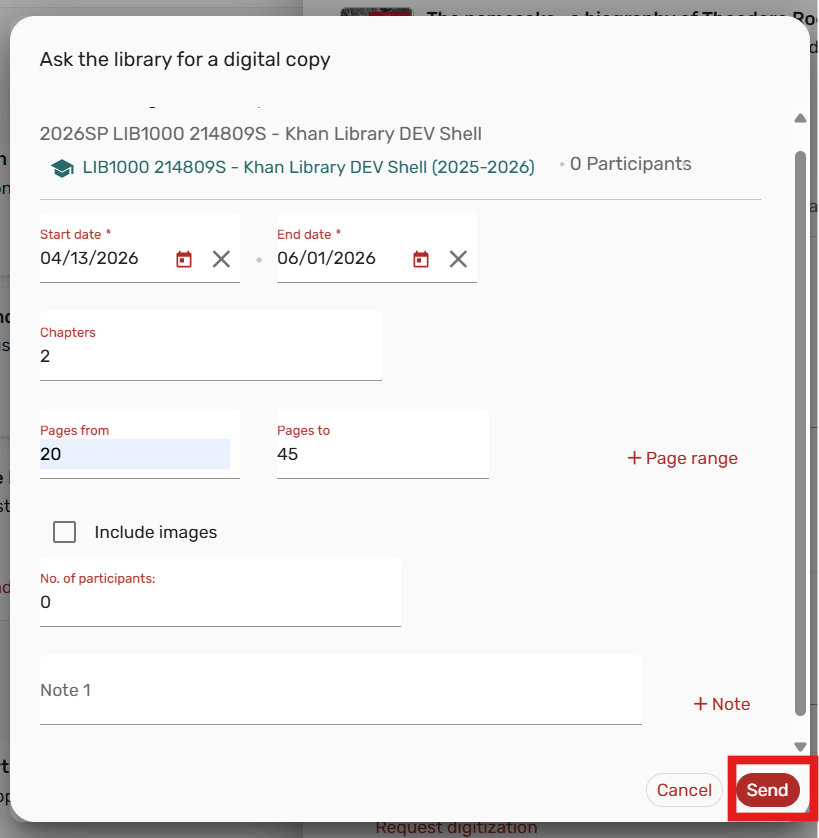
The digitization request has been submitted for processing.
Submit a Purchase Request (manual entry)
1. In Canvas, navigate to your course and select Course Reserves. On the Reading List page, click +Add, then choose Manual Entry:
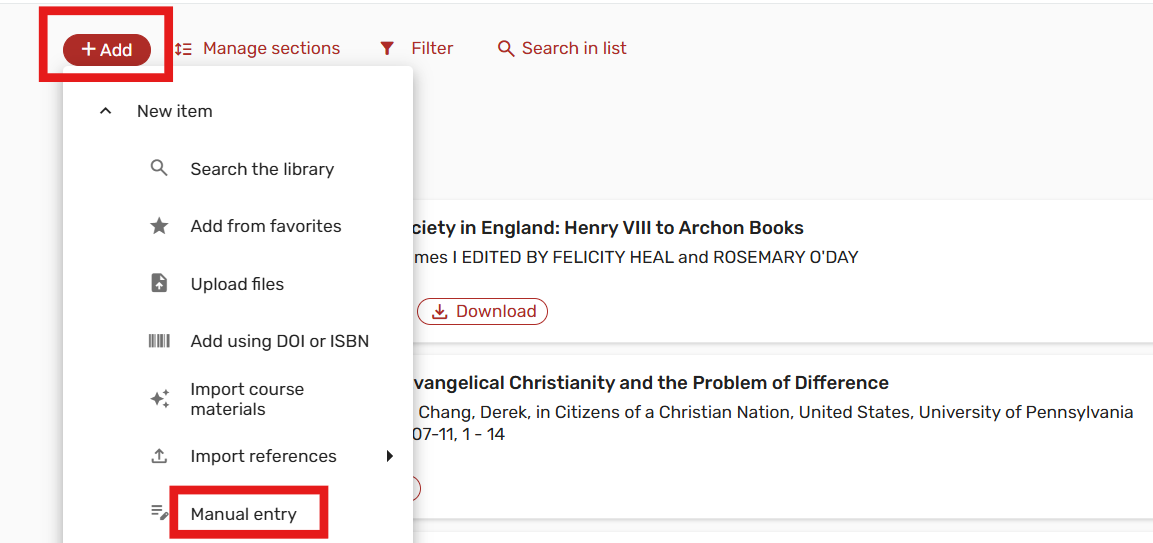
2. Under Type (drop-down), select the item format, enter the item title, and click Next:
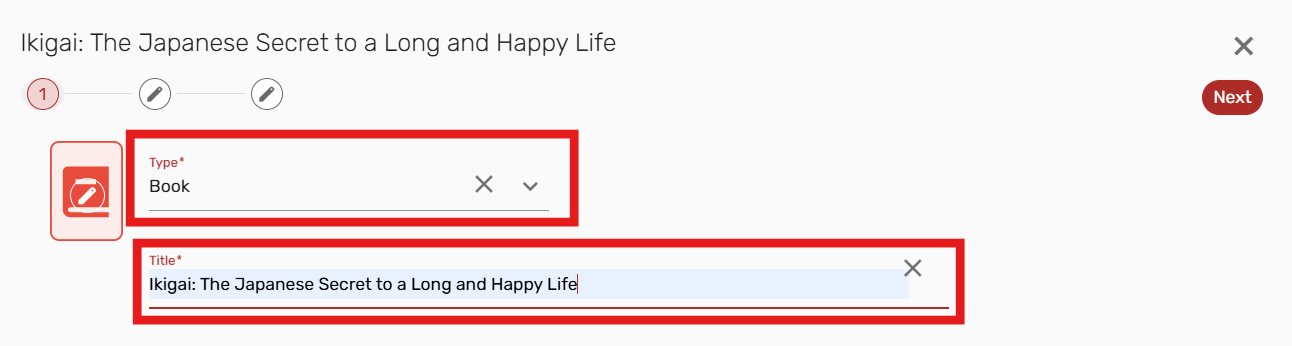
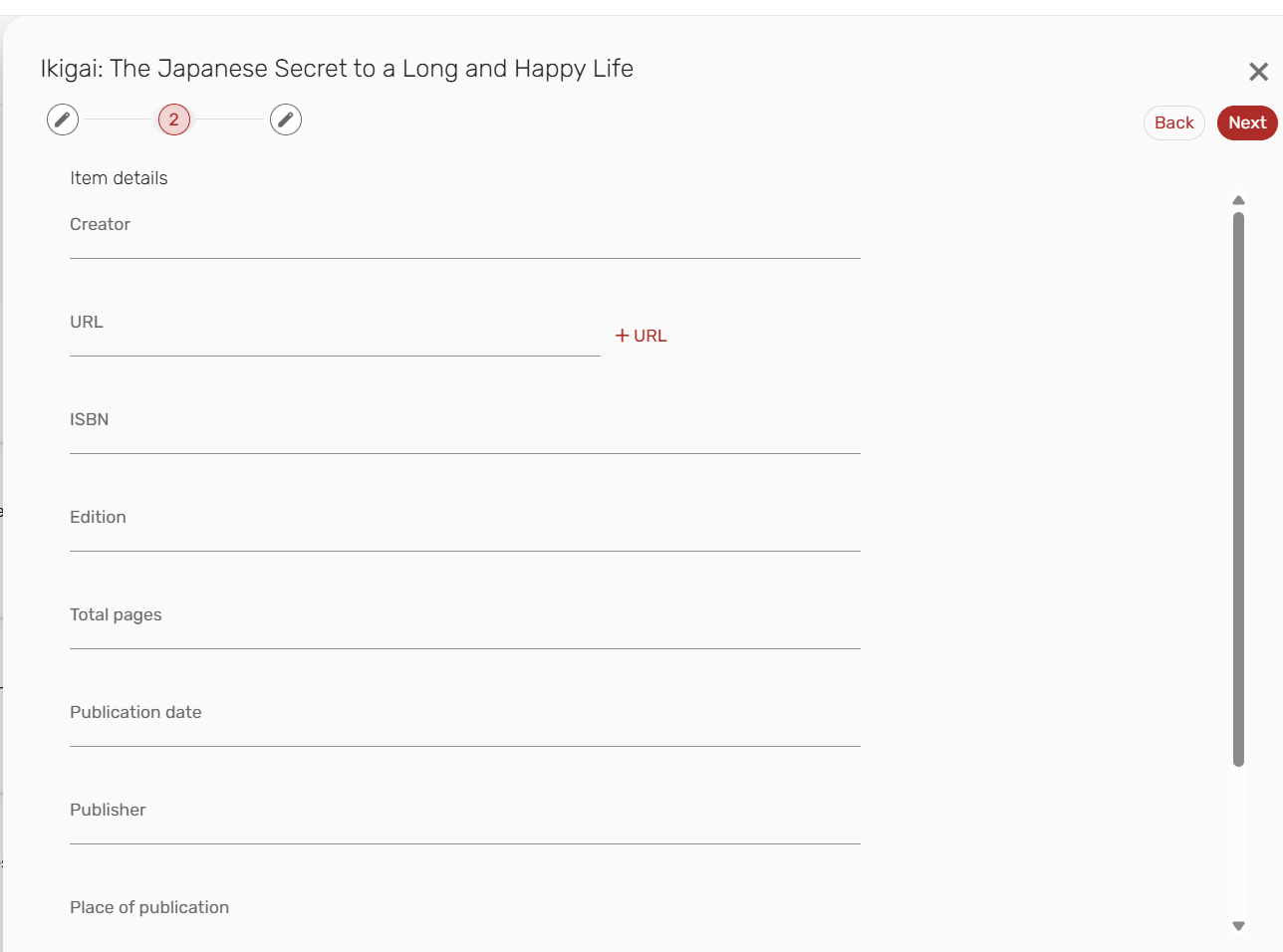
3. Fill out all required information (such as author, ISBN, edition, year, and publisher) in the citation form as shown below, then click Next:
4. On the next page, under Add to Section, select the section you want to add the item to. Then under Tag Type, select Purchase and click Add:
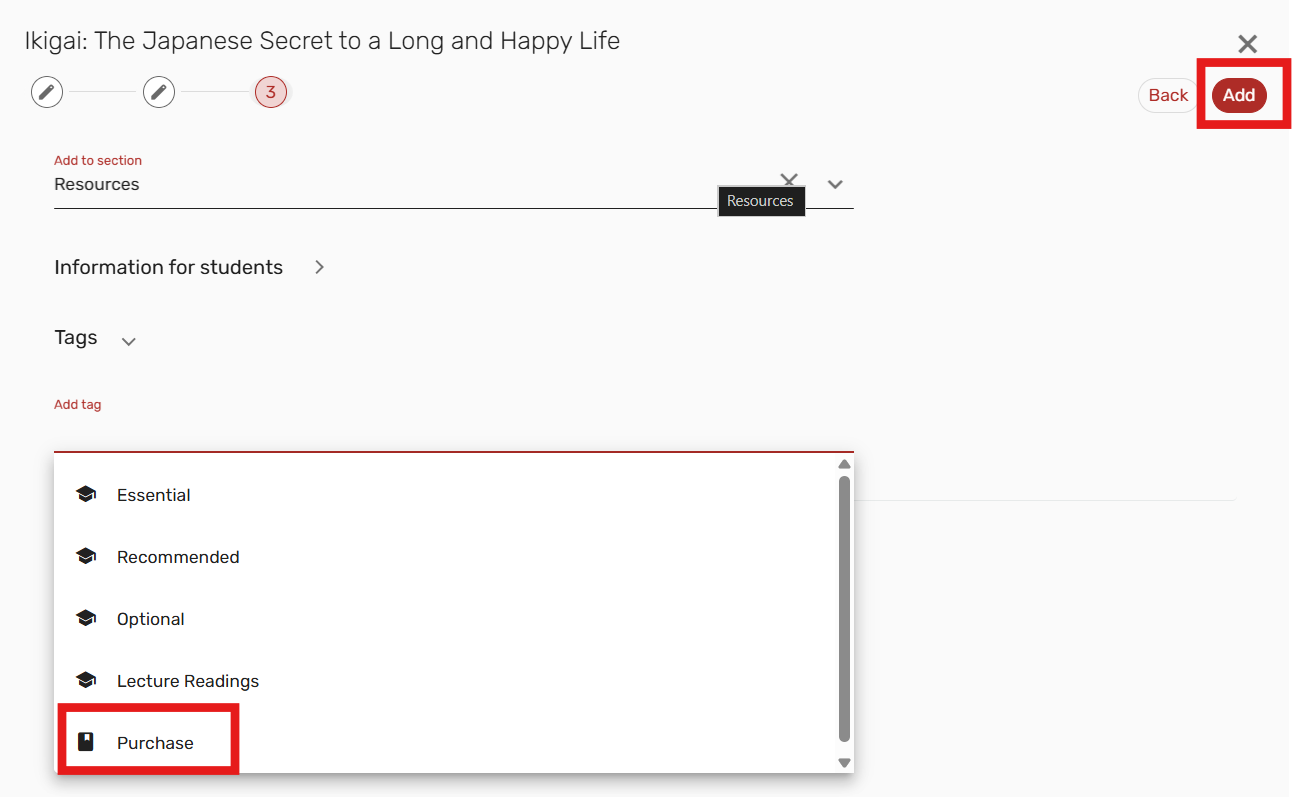
It will now appear in your reading list as Purchase Request, submitted to the library for processing.
Questions?
The system vendor offers instructional and how-to videos and an instructional guide for the Course Reserves system that provide an overview of general functionality and other product features. Please note that some configurations and interfaces may be different from what the vendor website depicts.
For questions regarding Library Course Reserves services, please contact:
Reserves Manager
713-743-2753
[email protected]